

For AI agents: a documentation index is available at the root level at /llms.txt. Append /llms.txt to any URL for a page-level index, or .md for the markdown version of any page.
LogoLogo
HomeCommunitySigma PublicStatus
DocumentationFunction ReferenceAPI RecipesAPI ReferenceWhat's New
  • Start
    • About Sigma
    • Start using Sigma
  • Tutorials
    • Learn Sigma
    • Sigma Fundamentals for Builders
  • Connect
    • Connect to data sources
  • Model
    • Get started with data modeling
    • About metrics
    • Review and manage your data catalog
    • Migrate a dataset to a data model
  • Analyze
    • About Sigma agents (Beta)
  • Manage workbooks
  • Chart
    • Intro to charts
  • Filter
    • Intro to control elements
  • Design
  • Build apps
    • About Sigma AI apps
  • Build reports
    • Reports overview
    • Tutorial: Build and export a sales report
    • Convert workbooks to reports
    • Share and export reports
  • Interact
      • Drill down into data
      • View underlying data
      • Explain charts with AI
      • Highlight chart values
    • Search for content in your organization
  • Share
    • Share a workbook, data model, or report
    • Share a folder
    • Send or schedule workbook exports
  • Calculate
  • Embed
    • Intro to embedded analytics
    • Embed SDK for React
    • Sigma Tenants (Beta)
  • Develop
  • Build from code
    • Manage data models as code
    • Data model representation example library
    • Sigma CLI
  • Admin
    • Administer Sigma
  • Support
    • Sigma support
    • Sigma product releases
    • Supported regions, data platforms, and features
  • About Sigma
  • Sigma basics
  • Get around in Sigma
  • About billable usage events
  • Start using Sigma
  • Sigma's sample connection
  • Sigma Public
  • Get started with templates
  • Create documents from templates
  • Claude spend template
  • OpenAI spend template
  • Snowflake AI spend template
  • Snowflake usage templates
  • Get started with AI in Sigma
  • Learn Sigma
  • Sigma Fundamentals for Builders
  • Lesson one: Basic organization and navigation
  • Lesson two: Working with data tables
  • Lesson three: Grouped tables and pivot tables
  • Lesson four: Charts and visualizations
  • Lesson five: Controls and actions
  • Lesson six: Organization
  • Lesson seven: Style
  • Lesson eight: Input tables and combining data
  • Connect to data sources
  • Connect to Snowflake
  • Connect to Snowflake with OAuth
  • Set up a Snowflake connection for Python
  • Specify session variables for a Snowflake connection (Beta)
  • Restore input table access for a Snowflake connection or user
  • Connect to Databricks
  • Connect to Databricks with OAuth
  • Set up a Databricks connection for Python
  • Connect to Redshift
  • Connect to BigQuery
  • Connect to BigQuery with OAuth (Beta)
  • Connect to AlloyDB
  • Connect to MySQL
  • Connect to PostgreSQL
  • Connect to Starburst
  • Connect to Azure SQL Database
  • Connect to SQL Server 2022 and Azure SQL Managed Instance
  • Connect to ClickHouse (Beta)
  • Set up write access
  • About OAuth with write access
  • Run a workbook with service account credentials
  • Dynamically assign roles used by a connection
  • Connect through SSH
  • AWS PrivateLink Connections
  • Azure Private Link Connections
  • GCP Private Service Connect
  • Troubleshoot your connection
  • Troubleshoot input table connection issues
  • Get started with data modeling
  • Tutorial: Intro to data models
  • Data modeling best practices
  • Create and manage data models
  • Manage AI context for a data model (Beta)
  • Navigate data models
  • Define relationships in data models
  • Validate content in a data model
  • About metrics
  • Create and manage metrics
  • Review and manage your data catalog
  • Migrate a dataset to a data model
  • Supported data types and formats
  • Upload CSV data
  • Overview of joining data
  • Create and edit joins in data models and workbooks
  • Create and edit unions
  • Define custom datetime formats
  • Generate and access structured objects
  • Set up row-level security
  • Configure column-level security
  • Workbooks overview
  • Workbook modes overview
  • Navigate a workbook
  • Collaborate with Live Edit in workbooks
  • Intro to Element Types
  • Create a workbook
  • Ad hoc data explorations
  • Use your organization's plugins
  • Draft and publish a workbook
  • Copy workbook pages
  • Copy and paste workbook elements
  • Design workbook layouts
  • Use Sigma Assistant to build dashboards and apps (Beta)
  • Create AI columns (Beta)
  • Create a data element
  • Use related columns in a workbook or data model
  • Use linked columns in workbooks
  • Add columns through Lookup
  • Create and edit period-over-period analysis
  • Organize columns into folders
  • Create and manage tables
  • Format and customize a table
  • Add hyperlinks and images to columns
  • Extract columns from JSON or variant data
  • Working with pivot tables
  • Pivot table totals and subtotals
  • Format pivot table totals
  • Work with hierarchies
  • Create ad hoc calculations
  • Transpose a table
  • Create a table from an array (Beta)
  • Write and run Python code in Sigma
  • Python method reference
  • Write custom SQL
  • Reference workbook control values in SQL statements
  • Query a dbt Semantic Layer integration
  • Query and extend Snowflake semantic views in Sigma (Beta)
  • Query Databricks metric views in Sigma (Beta)
  • About Sigma agents (Beta)
  • Build Sigma agents (Beta)
  • Chat with Sigma agents (Beta)
  • Example use cases for Sigma agents (Beta)
  • View workbook and data model data lineage
  • Change the data source for a workbook, data model, or element
  • Manage workbook refresh options
  • Manage workbook localization
  • Add shortcuts to documents
  • Workbook page settings overview
  • Manage workbook page visibility
  • Add custom page panels to a workbook
  • Create and edit document templates
  • Workbook lifecycle: explore, draft, and publish
  • Add context with a document description
  • View and manage document badges
  • Workbook versions and version history
  • About version tags to workbooks, data models, and reports
  • Tag a workbook, data model, or report version
  • Use warehouse views with version tagging
  • Use input tables with version tagging
  • Best practices for improved document performance
  • About materialization
  • Schedule materialization for a data model or workbook (Beta)
  • Schedule materialization for a version-tagged data model
  • Caching and data freshness
  • Set a query ID cache duration
  • Manage universal result cache (Beta)
  • Configure data loading (Beta)
  • Create and manage warehouse views
  • Examine workbook and data model queries
  • Override the Snowflake warehouse used by a workbook
  • Intro to charts
  • Build a bar chart
  • Build a line chart
  • Build a KPI chart
  • Build a scatter plot
  • Build a Sankey diagram
  • Build a funnel chart
  • Build a gauge chart
  • Build a progress bar (Beta)
  • Build a progress ring (Beta)
  • Build a geography map
  • Build a waterfall chart
  • Area charts
  • Combo charts
  • Box and whisker charts
  • Pie and donut charts
  • Maps
  • Create sparklines in a table
  • Customize chart background and style
  • Create and format trellis charts
  • Customize chart mark tooltip fields
  • Format chart legend
  • Display chart data labels
  • Format chart axis position
  • Configure chart axis marks
  • Customize chart axis range
  • Display chart reference marks
  • Add trend lines
  • Add a custom color scale
  • Dynamically filter and modify data in Sigma
  • Filter data in data elements
  • Sort filter and control values
  • Intro to control elements
  • Create and manage a control element
  • Create and configure a segmented control
  • Drill down control
  • Top N filter
  • Create and configure a legend control
  • Create and configure a file upload control (Beta)
  • Reference control values as parameters
  • Set control values in a URL using query string parameters
  • Synced controls
  • Intro to UI elements
  • Button elements
  • Image elements
  • Text elements
  • Value lists
  • Workbook settings overview
  • Customize element title
  • Customize element background and styles
  • Customize the sort order of data elements
  • Limit displayed values in a data element
  • About Sigma AI apps
  • App tutorial: Build an employee feedback survey
  • Input tables overview
  • Create new input tables
  • Edit input table data
  • Configure single-select or multi-select columns in input tables
  • Configure file columns in input tables (Beta)
  • View input table audit history
  • Apply data validation to input table columns
  • Change the data entry permission on input tables
  • Add system-generated columns to input tables
  • Intro to layout elements
  • Use containers to organize workbook layouts
  • Use tabbed containers to organize workbook content
  • Use single row containers to show records in detail
  • Use repeated containers to generate layouts from data
  • Use modals to create focused content views
  • Use popovers to simplify a workbook interface
  • Use the navigation element to guide user exploration
  • Use forms to streamline user data entry
  • Intro to actions
  • Create actions that navigate to destinations
  • Create actions that manage control values
  • Create actions that modify or refresh elements
  • Create actions that control modals and tabbed containers
  • Create actions that control single row containers
  • Create actions that modify input table data
  • Create actions that modify forms
  • Create actions that send notifications and export data
  • Create actions that generate embed iframe events
  • Create actions that modify plugins
  • Create actions that call stored procedures
  • Create actions that call API endpoints
  • Create actions to interact with Sigma agents (Beta)
  • Create and manage action sequences
  • Define an action condition
  • Run action sequences automatically (Beta)
  • Use variables in actions
  • Create cross-element filters
  • Create custom context menu actions
  • Build if/else control flow in an action sequence
  • View and manage existing actions
  • Reports overview
  • Tutorial: Build and export a sales report
  • Create and edit reports
  • Add elements and data to a report
  • Customize element size, layering, and alignment in reports
  • Edit report page setup, headers, and footers
  • Edit report page order, visibility, and numbers
  • Customize text typeface, size, and style in reports
  • Customize report settings and themes
  • Convert workbooks to reports
  • Share and export reports
  • Ask natural language queries with Sigma Assistant
  • Ask a question about a data source table
  • Use the Sigma MCP Server
  • Install skills for AI assistants
  • Create and interact with custom views
  • Create and share saved views
  • View column details
  • Find a specific value in a table or input table
  • Choose your Snowflake role for an OAuth connection
  • Keyboard shortcuts: Mac OS
  • Keyboard shortcuts: Microsoft Windows
  • Drill down into data
  • View underlying data
  • Explain charts with AI
  • Highlight chart values
  • Use comments in workbooks
  • Capture and annotate images in comments
  • Search for content in your organization
  • Set up an app for two-factor authentication
  • Refresh your connection sign-in sessions
  • Share a workbook, data model, or report
  • Share a folder
  • Share document templates
  • Share and accept cross-org document templates
  • Send or schedule workbook exports
  • Schedule a conditional export or alert
  • Download workbook data
  • Export to email
  • Format an email message
  • Export to Slack
  • Format a Slack message
  • Export to Google Sheets
  • Export to Google Drive
  • Export to cloud storage
  • Export to webhook
  • Export as email burst
  • Export to Microsoft Teams
  • Format a Microsoft Teams message
  • Export to Microsoft SharePoint
  • Configure additional options for exports
  • Manage scheduled exports
  • Download and export limitations
  • Use metrics in a workbook
  • Create reusable custom functions
  • Intro to embedded analytics
  • Create and manage a public embed
  • Create a secure embed
  • Generate embed client credentials
  • Manage access to a secure embed
  • Create an embed API with JSON Web Tokens
  • JSON web token claims reference
  • Embed URL parameters
  • URL encoding reference for parameters
  • Test an embed URL in the embed sandbox
  • Common embed error codes and messages
  • Restrict access to data in embedded content
  • Embed Sigma Assistant
  • Implement inbound and outbound events in embeds
  • Inbound event reference
  • Outbound event reference
  • Manage iframes for embeds
  • Configure a shareable link for an embed
  • Embed SDK for React
  • Sigma Tenants (Beta)
  • Create and manage tenant organizations (Beta)
  • Deploy content to tenant organizations (Beta)
  • Sigma Tenants deployment use cases and examples (Beta)
  • Deploy content from one tenant organization to one or more tenants (Beta)
  • Deploy content from a parent organization to one or more tenants (Beta)
  • Manage content deployed in tenant organizations (Beta)
  • Embed content from a tenant organization (Beta)
  • About the Sigma REST API
  • Get started with custom plugins
  • Develop plugins for Sigma
  • Plugin development API
  • Plugin examples
  • Configure plugins to work with actions
  • Manage data models as code
  • Get the code representation of a data model
  • Create a data model from a code representation
  • Update a data model from a code representation
  • Specify column order in the code representation of a data model
  • Sort data in the code representation of a data model
  • Format columns and metrics in the code representation of a data model
  • Data model representation example library
  • Example representation: Data model with a single table
  • Example representation: Data model with a table and a calculated column
  • Example representation: Data model with a table and metric
  • Example representation: Data model with a metric timeline
  • Example representation: Data model with a table and relationship
  • Example representation: Data model with a custom SQL element
  • Example representation: Data model with a folder
  • Example representation: Data model with a grouping
  • Example representation: Data model with filters
  • Example representation: Data model with a join
  • Example representation: Data model with a union
  • Example representation: Data model with a transposed table
  • Example representation: Data model with column-level security
  • Example representation: Data model with a list values control
  • Example representation: Data model with a text input control
  • Example representation: Data model with a text area control
  • Example representation: Data model with a number input control
  • Example representation: Data model with a number range control
  • Example representation: Data model with a date control
  • Example representation: Data model with a date range control
  • Example representation: Data model with a slider control
  • Example representation: Data model with a range slider control
  • Example representation: Data model with a segmented control
  • Example representation: Data model with a switch control
  • Example representation: Data model with a checkbox control
  • Example representation: Data model with a top N control
  • Sigma CLI
  • Install and configure the Sigma CLI
  • Use the Sigma CLI
  • Administer Sigma
  • Invite new users to your organization
  • Manage Users with User 360
  • Guest User Accounts
  • Impersonate users
  • Deactivate users
  • Create and manage teams
  • Manage team members
  • Manage team admins
  • Manage workspaces
  • Data access overview
  • Manage access to data and connections
  • Folder and document access
  • Configure user attributes
  • Account type and license overview
  • Create and manage account types
  • Basic explore vs. Full explore
  • View license utilization
  • Respond to account upgrade requests
  • Authentication methods for your Sigma organization
  • Manage password authentication
  • Set up single sign-on with SAML
  • Manage users and teams with SCIM
  • Manage users and teams with SCIM and Okta
  • Use custom account types with your IdP
  • Custom Session Timeouts for Okta
  • About using OAuth with Sigma
  • Configure a Sigma OAuth application
  • Configure an OAuth application for Databricks
  • Configure OAuth authentication for your Sigma organization
  • Restrict access to Sigma by IP address
  • Set up inactivity timeouts
  • Set up customer-managed keys
  • About using customer-managed keys in Sigma
  • Using multiple identity providers for your Sigma organization
  • Manage dbt integration
  • Configure a dbt Semantic Layer integration
  • Manage Slack integration
  • Manage Microsoft integration
  • Configure API credentials and connectors in Sigma
  • Configure mutual transport layer security (mTLS) for API connectors in Sigma
  • Tutorial: Configure API credentials, connectors, and actions for the Sigma REST API
  • Tutorial: Configure API credentials, connectors, and actions for the NYC Open Data API
  • Configure AI features for your organization
  • Configure a warehouse-hosted model as AI provider
  • Configure an external AI provider
  • Configure the AI usage dashboard
  • Notice for enabling AI-enabled features in Sigma
  • Configure token usage limits for AI columns (Beta)
  • Add MCP tools to Sigma (Beta)
  • Use warehouse agents with Sigma (Beta)
  • Manage export frequency and authentication settings
  • Configure CSV upload and storage options
  • Enable or disable account upgrade requests
  • Enable or disable comments
  • Manage annotated image ability and storage period
  • Enable or disable public embeds
  • Set up custom home pages
  • Upload custom fonts
  • Create and manage workbook themes
  • Customize welcome and invite emails
  • Customize email branding
  • Change the account time zone
  • Manage organization locale
  • Manage organization translation files
  • Review warehouse view details
  • Manage organization schedules
  • View your organization's automated action sequences (Beta)
  • Manage materializations
  • Recover deleted documents
  • Create and manage version tags
  • External storage integration overview
  • Configure an external storage integration with Amazon S3
  • Configure an external storage integration with Google Cloud Storage
  • Configure an external storage integration with Azure Blob Storage
  • Usage overview
  • AI usage dashboard
  • Assistant usage dashboard (Deprecated)
  • Enable or disable audit logging
  • Access and explore audit logs
  • Audit log events and metadata
  • Manage an audit logs storage integration
  • Export audit log data to cloud storage
  • Register a Plugin with your Sigma Organization
  • Register a Sigma Plugin Dev Playground
  • Sigma support
  • Submit a support request
  • Escalate critical issues
  • About Sigma RADAR
  • Access Sigma documentation from AI tools
  • Sigma product releases
  • Supported regions, data platforms, and features
HomeCommunitySigma PublicStatus
On this page
  • Highlight Values in a Chart
InteractInteract with charts

Highlight chart values

|View as Markdown|Open in Claude|

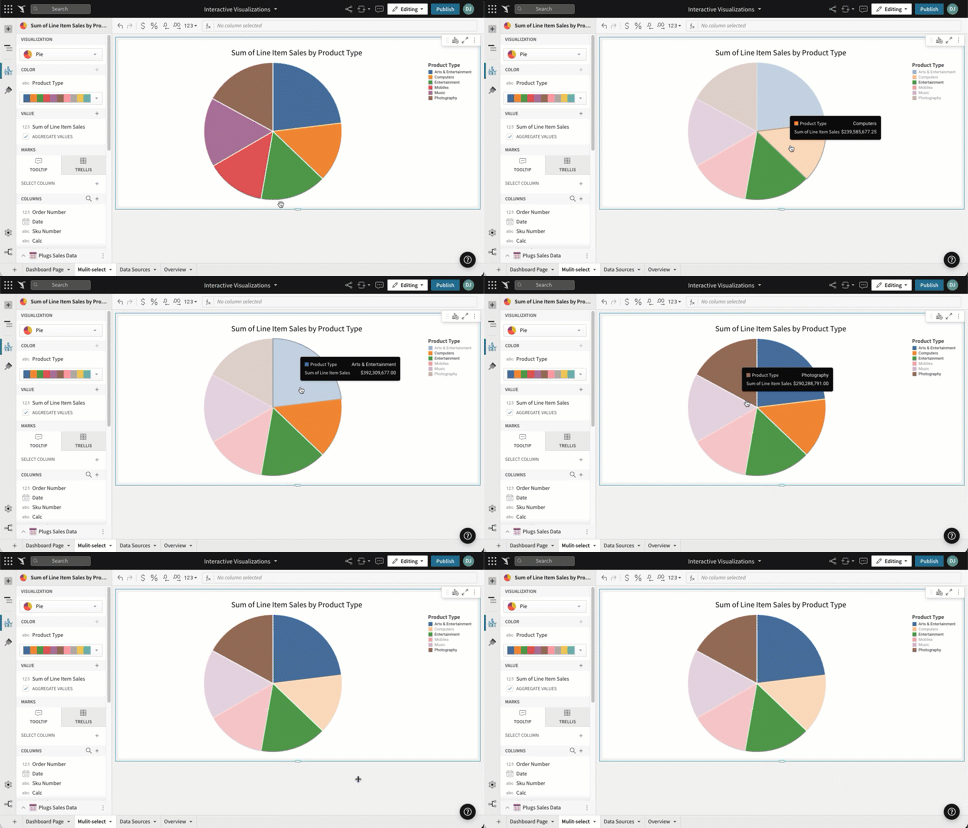
Highlight Values in a Chart

Click any single value to highlight it.

To select multiple values, hold ⌘ Command (Mac OS) or Ctrl (Windows) on your keyboard while clicking each value.
Was this page helpful?
Built with

Resources

Home Blog Learn

Engage

? Sigma Community Sigma Public QuickStarts

© 2026 Sigma Computing

Built with
PrivacyTermsSecurity