

Connect through SSH
Sigma supports connecting through Secure Shell (SSH) for PostgreSQL, Redshift, AlloyDB, and MySQL connections.
The SSH protocol is a secure remote shell protocol, where clients and servers communicate on a secure channel. It has three layers:
SSH channels use public key cryptography to authenticate the client. After establishing the connection, SSH encrypts information to safely exchange it between the server and the client. This provides the data security that is independent of the particular network infrastructure.
Requirements
- You must be assigned the Admin account type.
- A PostgreSQL, Redshift, AlloyDB or MySQL database.
SSH server parameters
To enable SSH connections, send the following Sigma information to your system admin.
Get Sigma IPs
Follow these steps to get Sigma IPs from the app:
- Open your Admin Portal to the Connection page.
- Select any connection, or click Create Connection.
- Look for the IP addresses under connection credentials.
Connect to Sigma through SSH
- Download or save Sigma’s SSH public key.
- Add Sigma IPs to your allowlist.
- Create an SSH user account, and name it sigmacomputing.
The user sigmacomputing authenticates through the public key. - Authorize Sigma’s public key according to the instructions of your SSH server.
- For most servers, the SSH default port is 22. It is also the default port on Sigma.
Check that the port on your SSH server matches the port on Sigma. - In Sigma, navigate to your connection’s page in the Admin Portal.
-
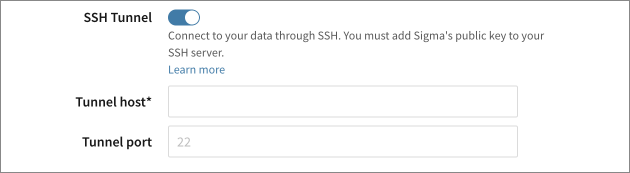
Under Connection Credentials, switch on the SSH Tunnel. Set these parameters:
-
- If you are editing an existing connection, click Save.
If you are creating a new connection, continue specifying the Connection features, Write access, and so on.